Getting Started
This guide will help you quickly get started with MinecraftSounds and create your first Minecraft music pack.
Installing MinecraftSounds Music Pack Generator
System Requirements
- Windows 10 or above
- 1GB memory
- 500MB available disk space
Download MinecraftSounds Music Pack Generator
- Go to the Download page to get the latest version of the MinecraftSounds Music Pack Generator
- Download the compressed file (e.g., MinecraftSounds.zip or MinecraftSounds.7z)
- Extract the compressed file to your chosen directory (e.g., D:\MinecraftSounds)
Tip
Please check if the extracted contents match the image 
Creating Your First Music Pack
Launch MinecraftSounds Music Pack Generator
Start the application. On first launch, you will see a file format association prompt.
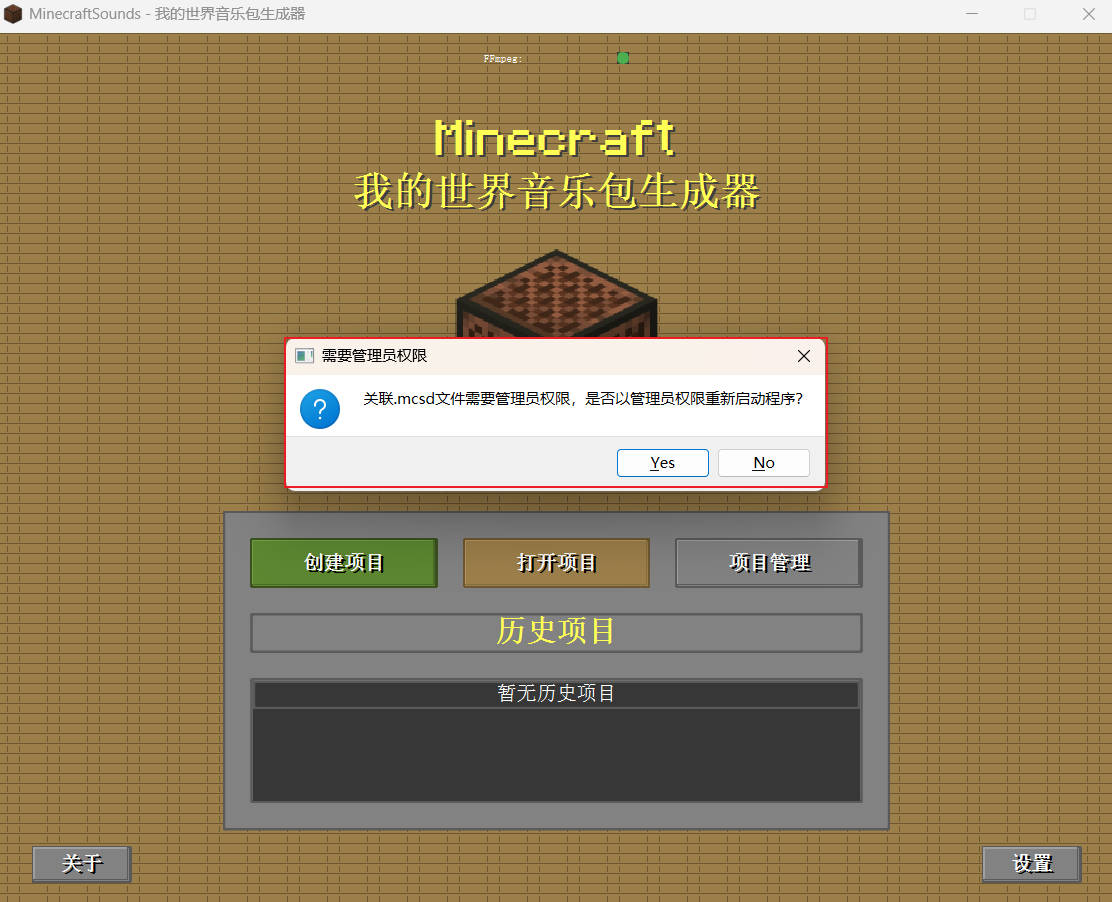
Follow the prompts to associate the MinecraftSounds Music Pack Generator with the .mcsd file format.
Tip
After association is complete, you can directly double-click .mcsd files to open the program.
Create a New Project
- Click the "New Project" button

- Fill in the information in the New Project window that appears
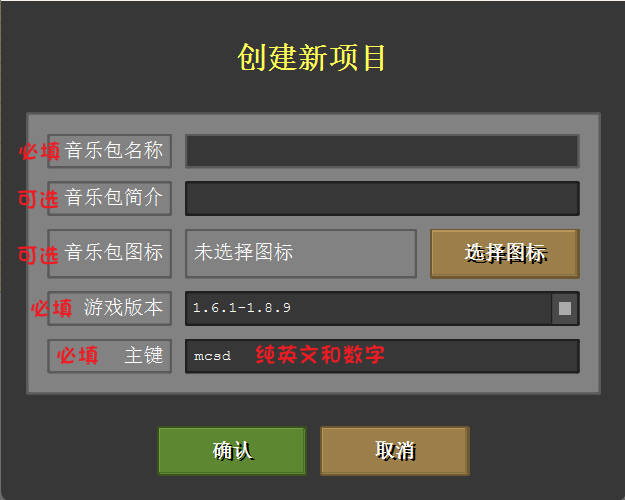
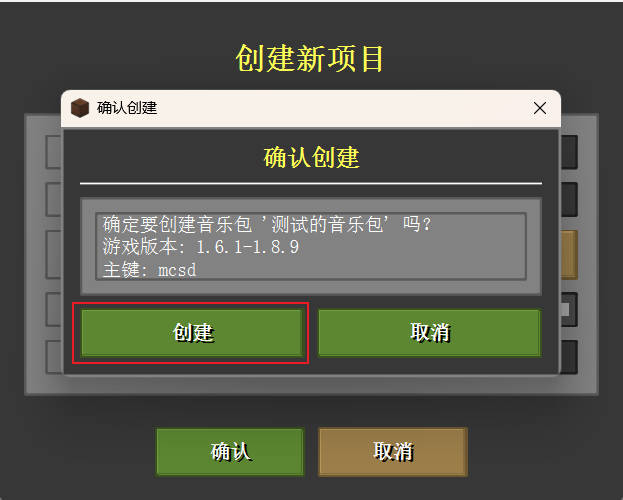
- After confirming the information is correct, click the "Confirm" button
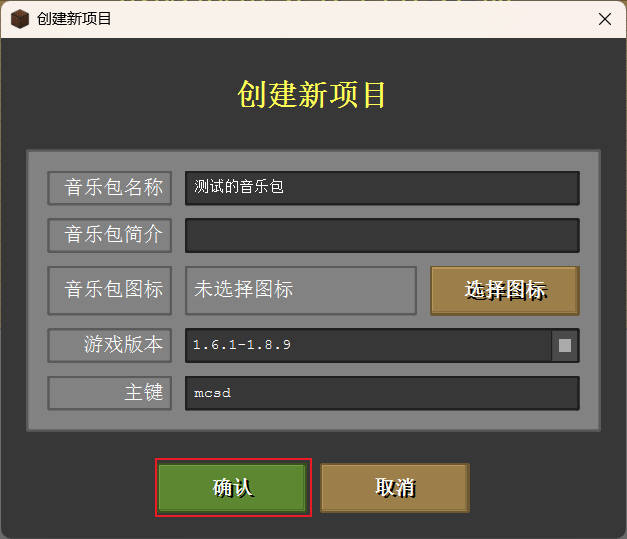
- In the secondary confirmation dialog, click the "Create" button
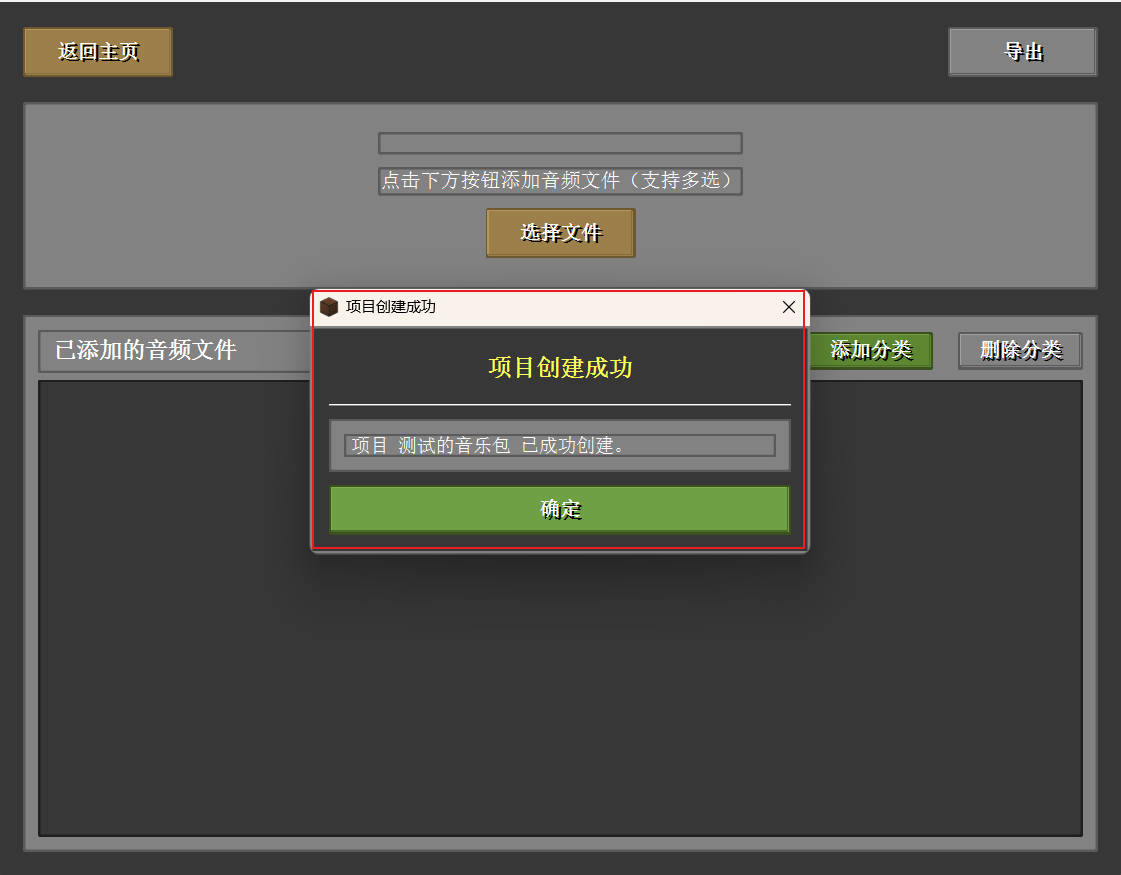
- After the project is created, it will switch to the editing page. A "Project created successfully" dialog will appear; you can click "OK" to close it.
Adding Sound Effects
Now, you can start adding custom sound effects:
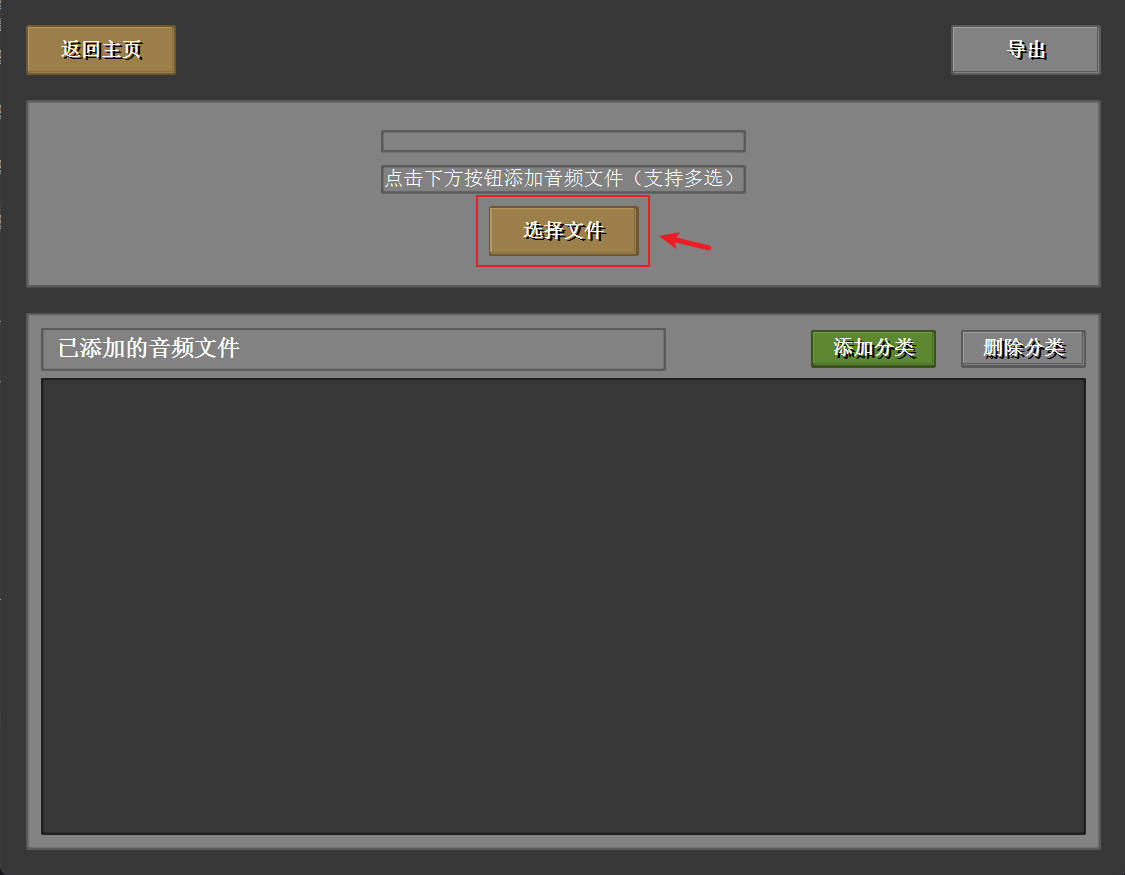
- Click the "Select File" button, and in the file selection window that appears, select the audio file you want to add
Tip
Only .ogg, .wav, .mp3, and .flac audio file formats are supported
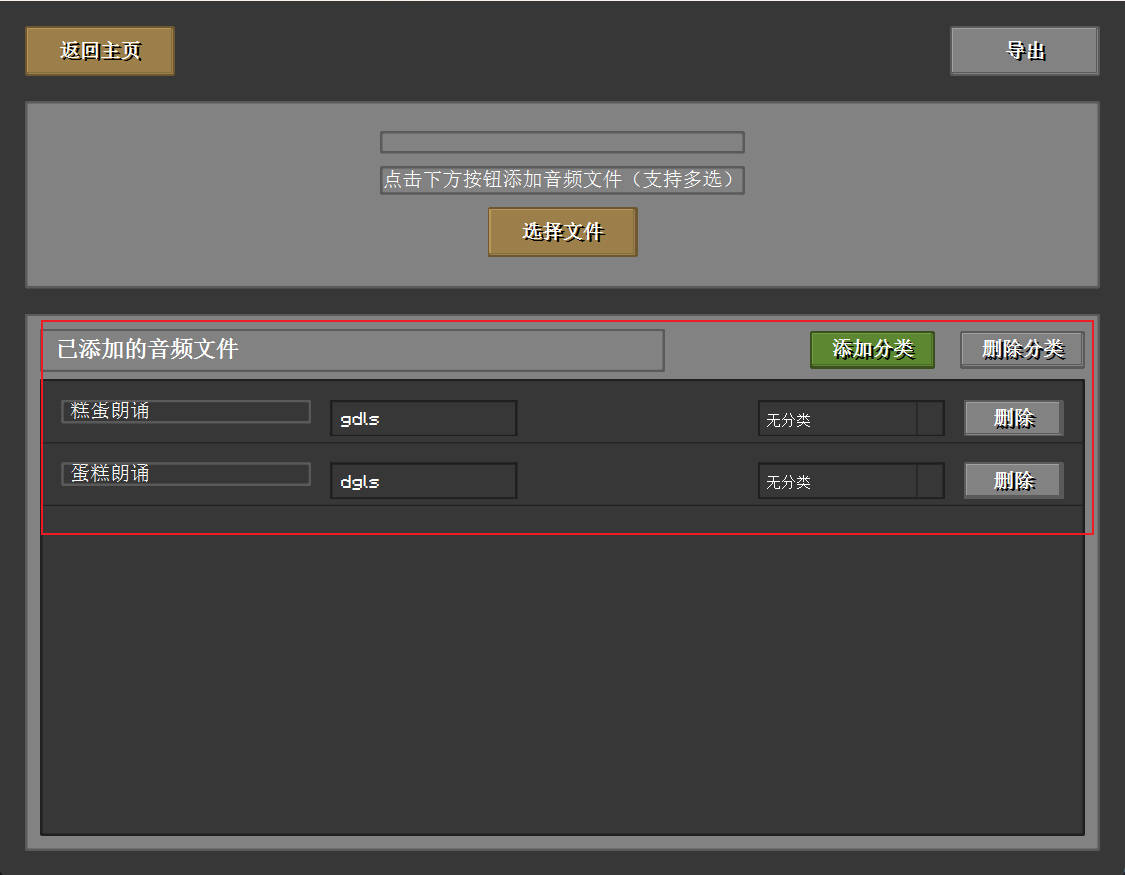
- The added audio files will be displayed in the list below, where you can view the audio files you've added
Note
Minecraft officially only supports .ogg format audio files. When exporting, the program will automatically convert other formats to .ogg format.
Exporting the Music Pack
When you are satisfied with your music pack, you can export it as a resource pack usable in Minecraft:
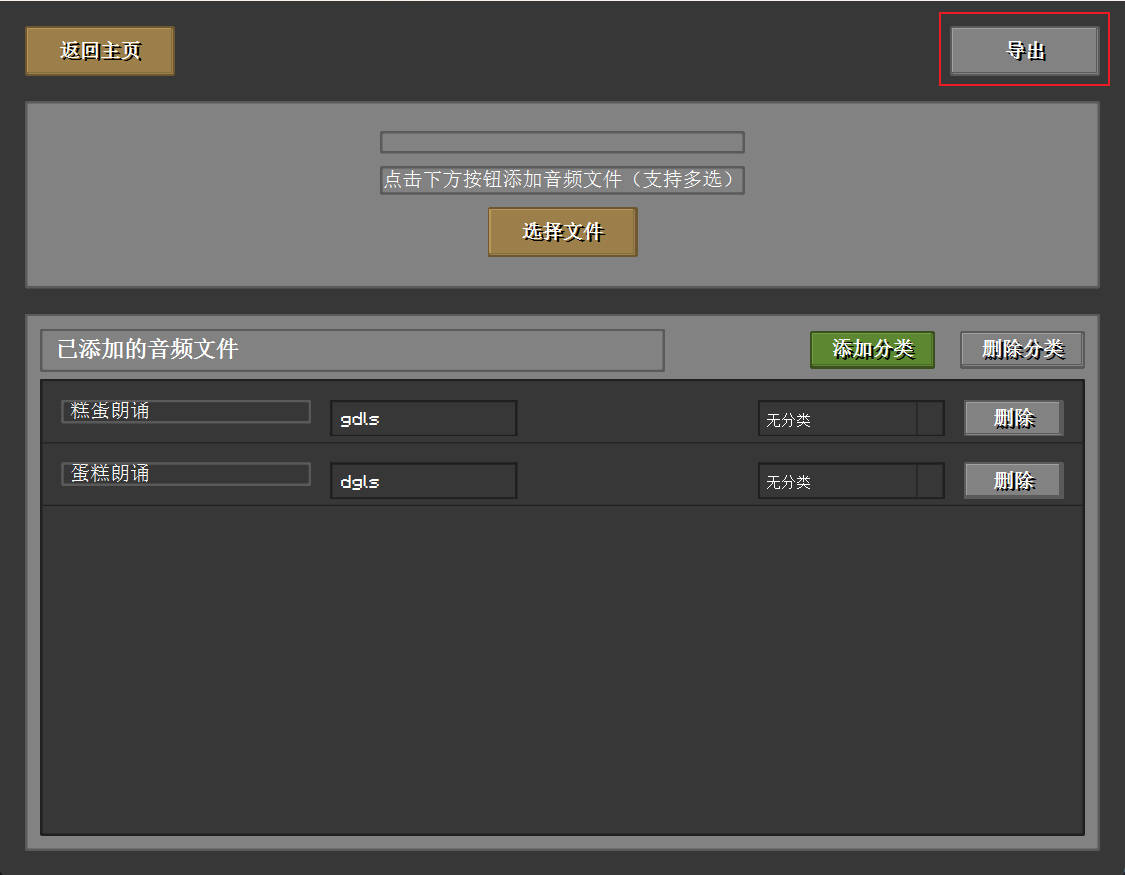
- Click the "Export" button in the top menu
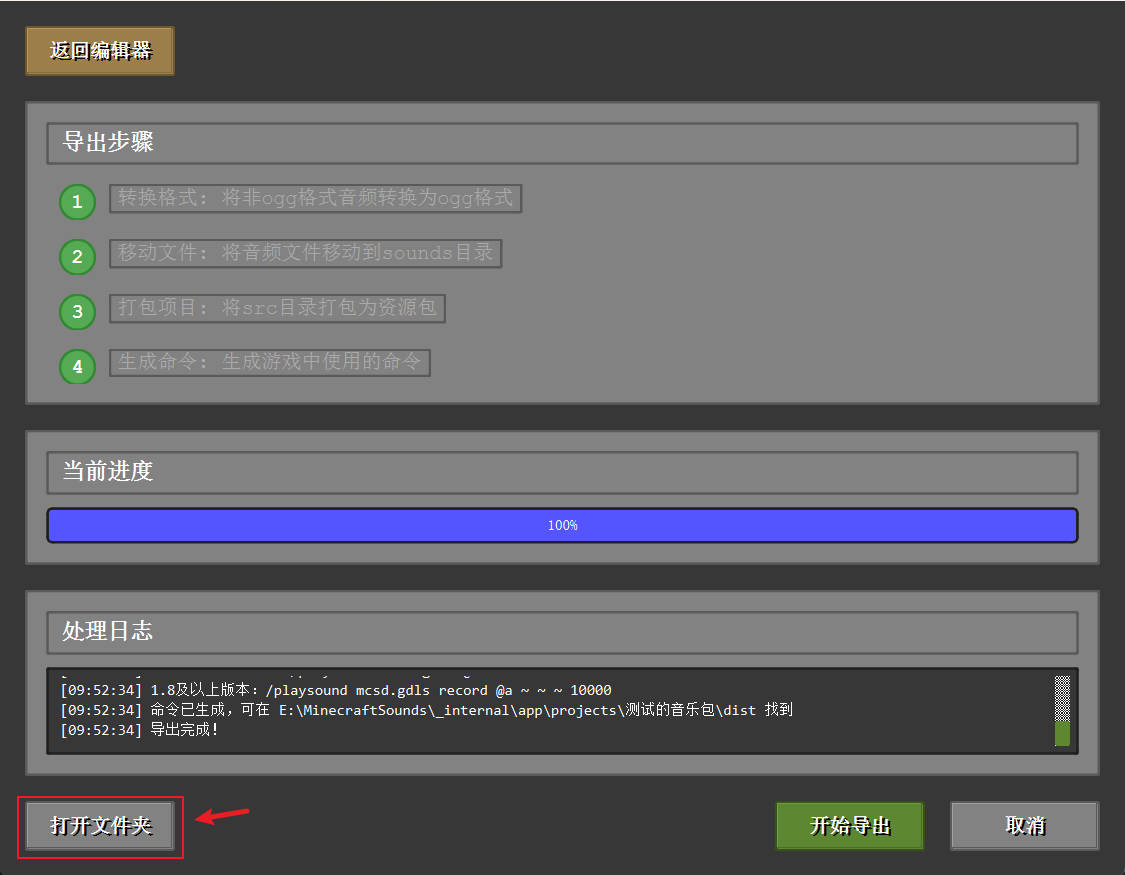
- Click the "Start Export" button at the bottom, and the program will begin executing according to the steps above.

- After a successful export, a dialog will appear; click the "OK" button to close it.

- Click the "Open Folder" button in the lower left corner to open the folder containing the packaged audio pack
Tip
If the program doesn't open the folder, you can find it through the path shown after "Folder opened".
You can also find it at: {software directory}\_internal\app\projects\{your music pack name}\dist
Installing the Music Pack in Minecraft
- Open Minecraft
- Click "Options" → "Resource Packs"
- Click "Open Resource Pack Folder"
- Copy the exported .zip file to this folder
- Return to Minecraft, your music pack should appear in the available resource packs list
- Click the "→" button to move it to the "Selected Resource Packs" list
- Click the "Done" button
Now, you can use your custom sound effects or music in the game!
Next Steps
- Explore the Tutorials section to learn how to create more complex music packs