
Categories
The category feature helps organize audio files conveniently. For example, when building game levels, all audio files for the first level can be placed in the Level 1 category.
The category feature button is located in the upper right corner of the audio list, as shown: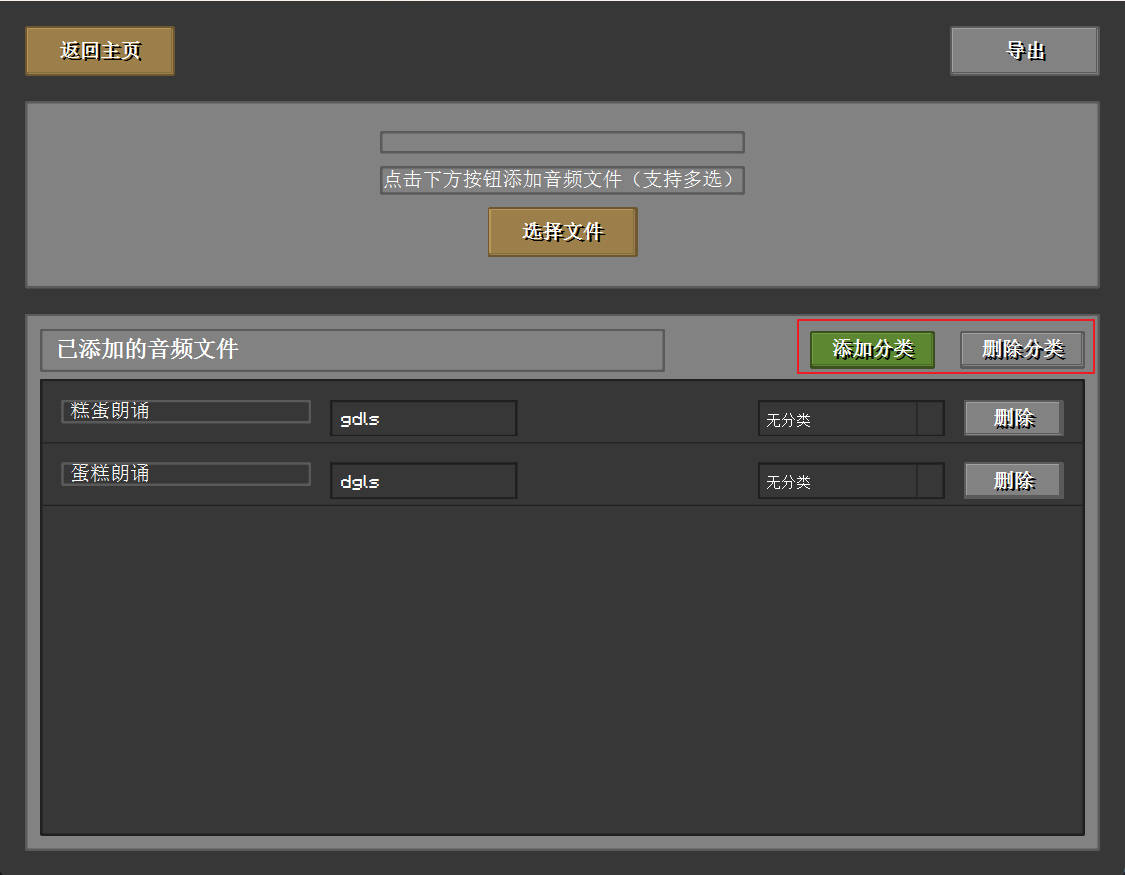
How to Use Categories
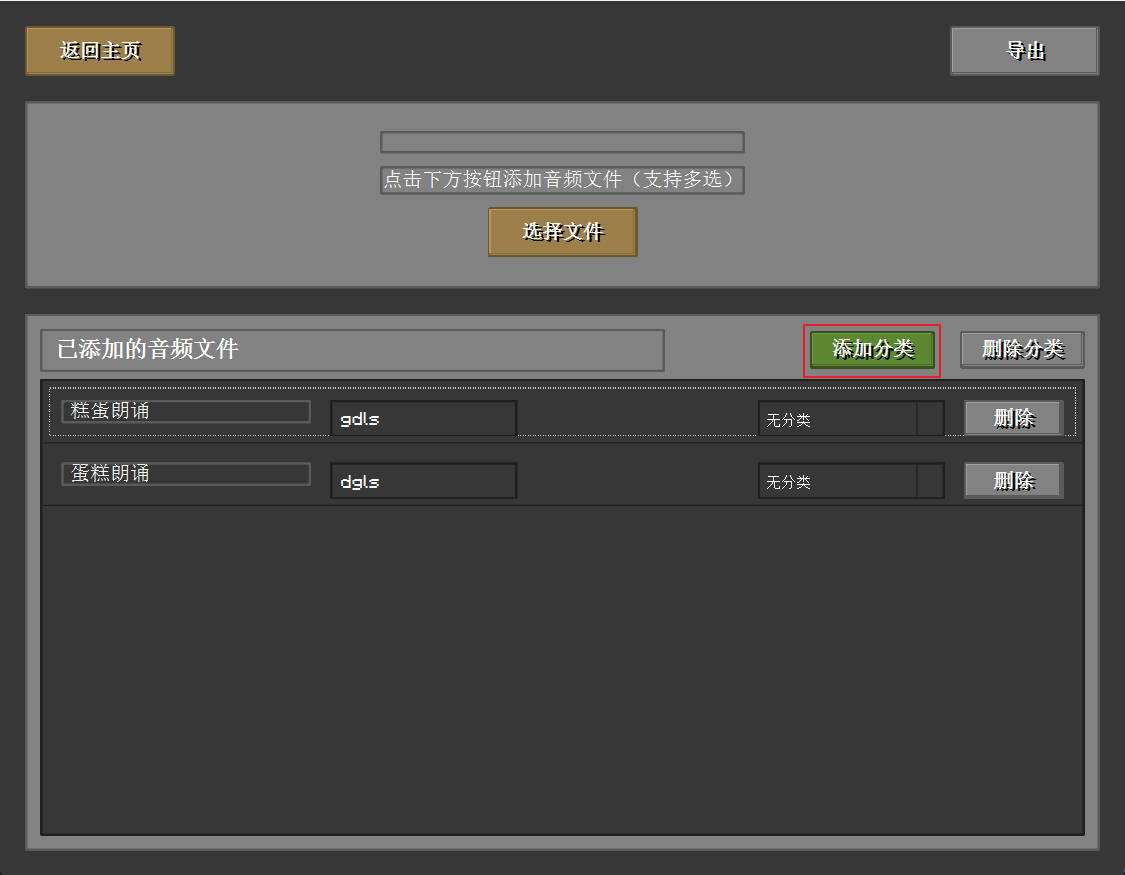
- Click the "Add Category" button
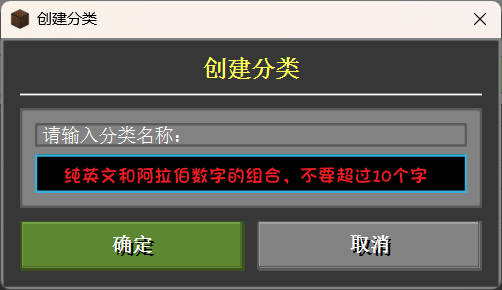
- Enter the category name in the dialog box that appears
Note
Category names cannot contain spaces or special characters. Only combinations of lowercase English characters or Arabic numerals are allowed. It's best not to have numbers at the beginning and not to use pure numbers.
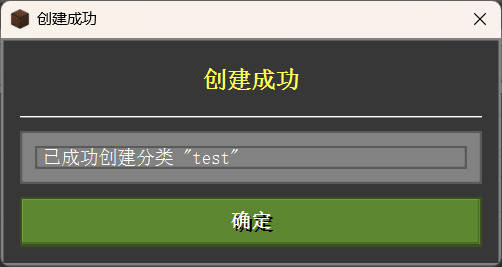
- Click the "OK" button. When prompted with "Creation successful", the category has been successfully added
- You can switch categories in the dropdown selection box in the audio list
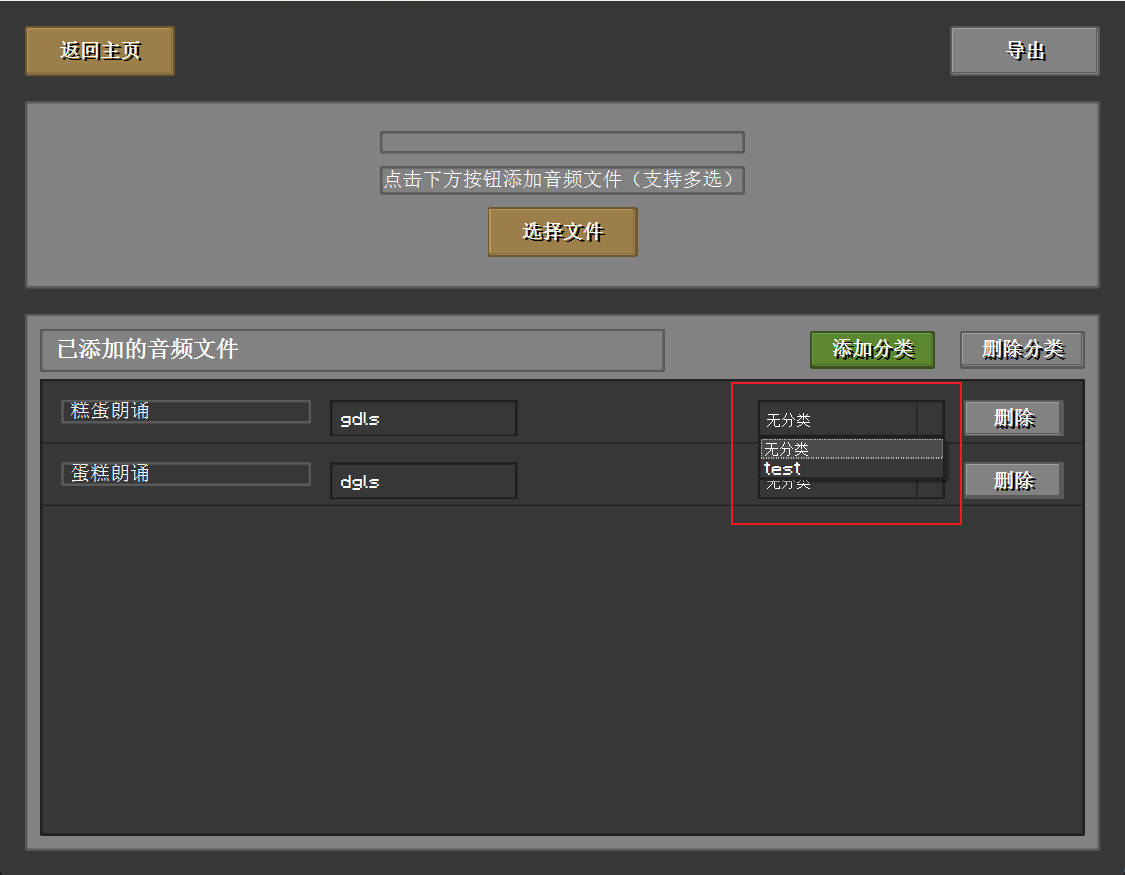
Changes When Using Categories
For version 1.7.10 and below: /playsound mcsd.{category_name}.{sound_effect_soundkey} @a ~ ~ ~ 10000 For version 1.8 and above: /playsound mcsd.{category_name}.{sound_effect_soundkey} record @a ~ ~ ~ 10000
Tip
When using categories, you need to replace {category_name} with the actual category name and {sound_effect_soundkey} with the actual sound effect soundkey. For example: If a category name is "test" and a sound effect soundkey is "my_sound", then the complete soundkey would be "mcsd.test.my_sound".